> ## Documentation Index
> Fetch the complete documentation index at: https://qawolf-wiz-10935-docs-correct-deploy-success-response-contr.mintlify.site/llms.txt
> Use this file to discover all available pages before exploring further.

# How to integrate with Azure DevOps Boards

> Connect QA Wolf to Azure DevOps Boards to automatically create and sync bug report issues using OAuth.

<Check>
  Go to `https://dev.azure.com/ORGANIZATION_NAME/_settings/organizationPolicy` — **ORGANIZATION\_NAME** is your Azure DevOps Organization name.

  **Because** QA Wolf connects to Azure DevOps using OAuth, you must enable **Third-party application access via OAuth**.

  <Frame>
    <img src="https://mintcdn.com/qawolf-wiz-10935-docs-correct-deploy-success-response-contr/-iI2ykaQMX_zZAn3/images/integrate-your-issue-tracker/image-21.png?fit=max&auto=format&n=-iI2ykaQMX_zZAn3&q=85&s=14b8e69c5e1f88306bda9755e502ddd1" alt="" width="854" height="98" data-path="images/integrate-your-issue-tracker/image-21.png" />
  </Frame>

  If **Third-party application access via OAuth** is disabled, an Azure DevOps organization owner must enable it before QA Wolf can be authorized. If you are not an organization owner, contact your Azure DevOps administrator.
</Check>

<Steps>
  <Step>
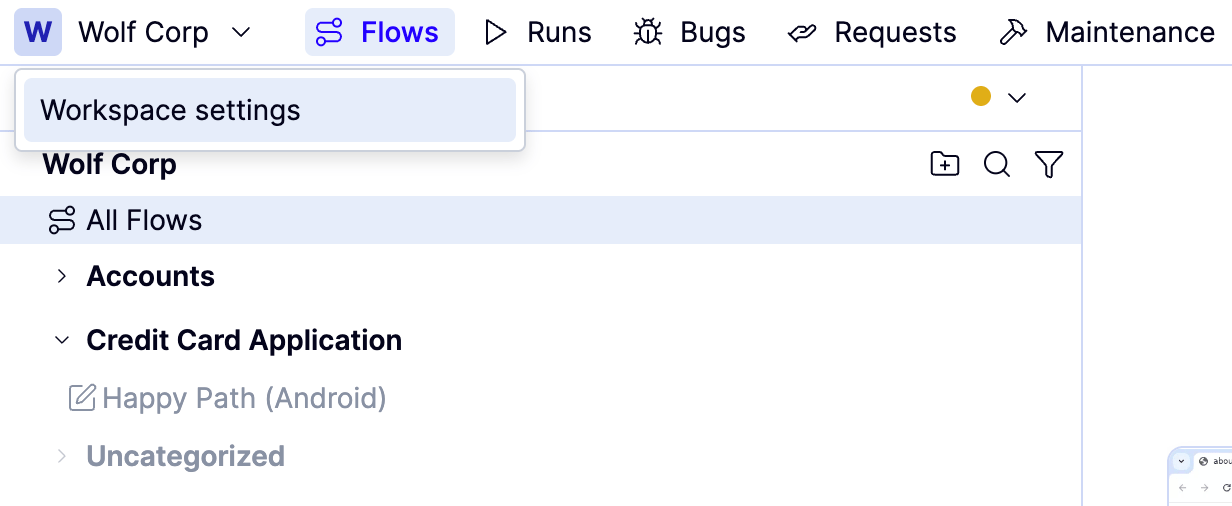
    Select **Workspace settings** from the **Workspace name** dropdown above the flows list.
    <Frame>
      <img src="https://mintcdn.com/qawolf-wiz-10935-docs-correct-deploy-success-response-contr/-iI2ykaQMX_zZAn3/images/integrate-your-issue-tracker/image-15.png?fit=max&auto=format&n=-iI2ykaQMX_zZAn3&q=85&s=640a6594af0c371b2ac92a61b5c475fb" alt="" width="1232" height="506" data-path="images/integrate-your-issue-tracker/image-15.png" />
    </Frame>
  </Step>

  <Step>
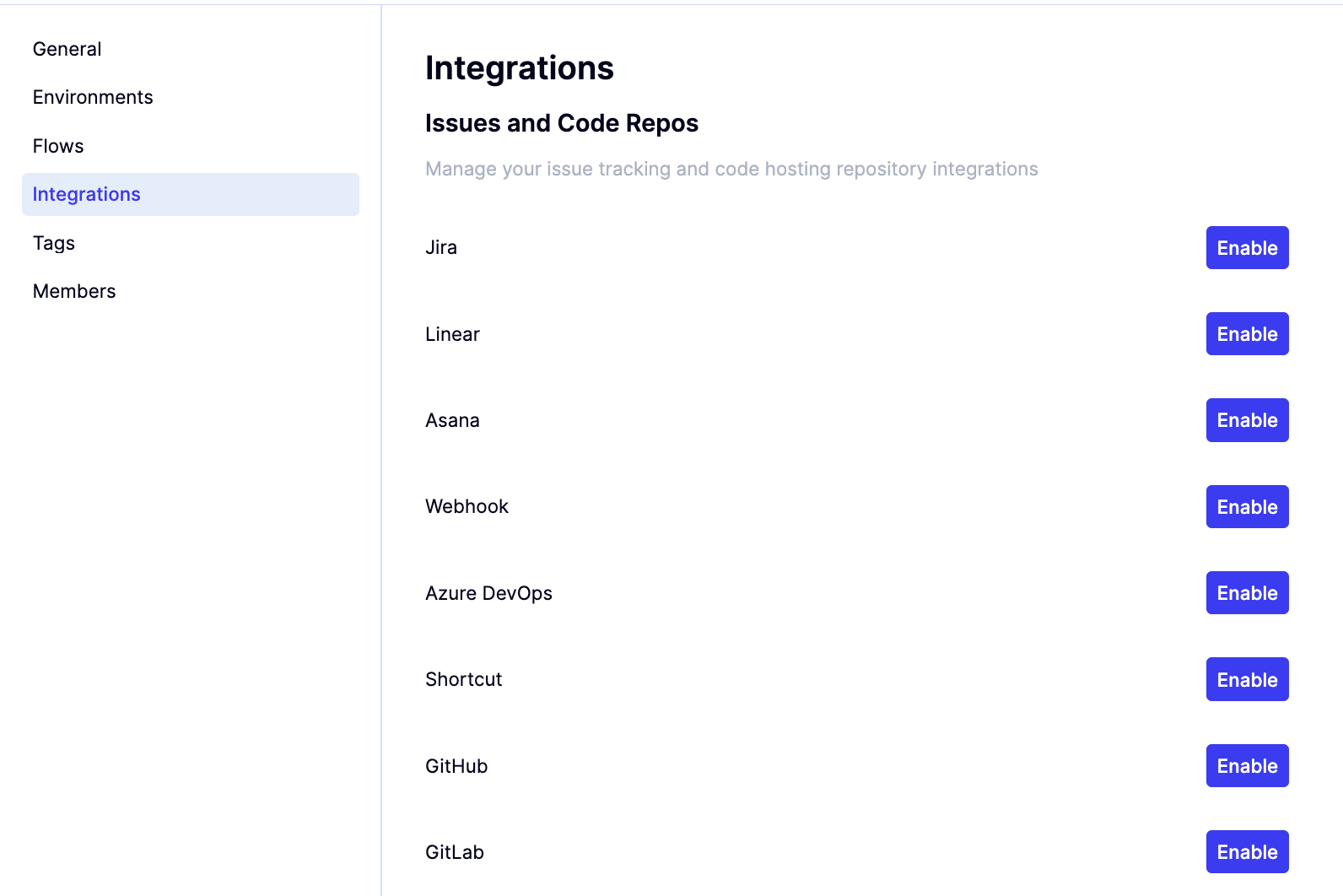
    Click **Integrations** from the left-side navigation bar.
    <Frame>
      <img src="https://mintcdn.com/qawolf-wiz-10935-docs-correct-deploy-success-response-contr/-iI2ykaQMX_zZAn3/images/integrate-your-issue-tracker/image-16.png?fit=max&auto=format&n=-iI2ykaQMX_zZAn3&q=85&s=919d0620551ff581c7f558ae7ebba809" alt="" width="1592" height="1062" data-path="images/integrate-your-issue-tracker/image-16.png" />
    </Frame>
  </Step>

  <Step>
    Click **Enable** next to Azure DevOps.
  </Step>

  <Step>
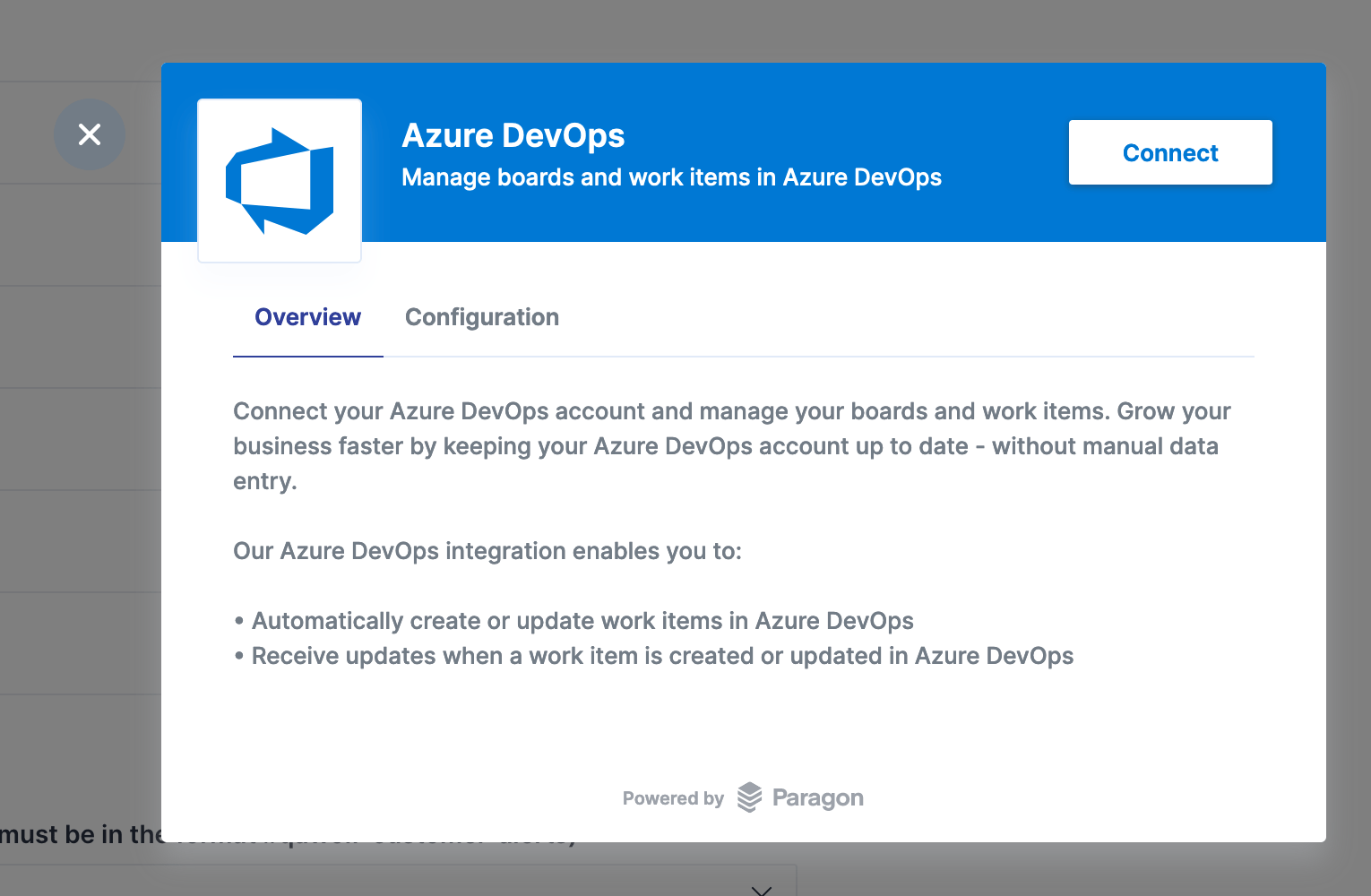
    Click on the connect button.

    <Frame>
      <img src="https://mintcdn.com/qawolf-wiz-10935-docs-correct-deploy-success-response-contr/-iI2ykaQMX_zZAn3/images/integrate-your-issue-tracker/image-17.png?fit=max&auto=format&n=-iI2ykaQMX_zZAn3&q=85&s=1d1373b761d343248c75dcfa49e53301" alt="" width="1530" height="1000" data-path="images/integrate-your-issue-tracker/image-17.png" />
    </Frame>
  </Step>

  <Step>
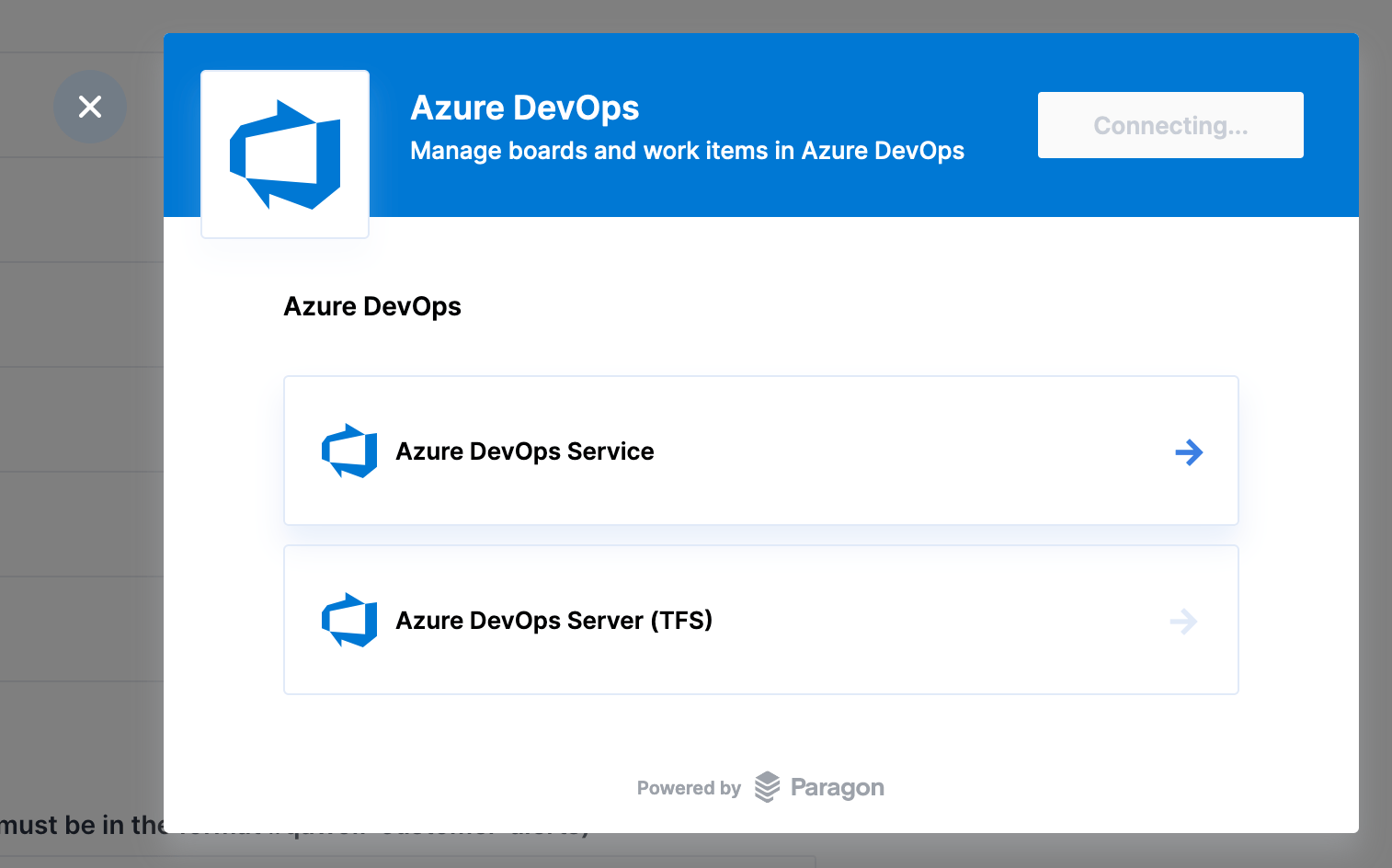
    Select the **Azure DevOps** service.

    <Frame>
      <img src="https://mintcdn.com/qawolf-wiz-10935-docs-correct-deploy-success-response-contr/-iI2ykaQMX_zZAn3/images/integrate-your-issue-tracker/image-18.png?fit=max&auto=format&n=-iI2ykaQMX_zZAn3&q=85&s=e6fb8b6bc343deca61946de2cad071c5" alt="" width="1514" height="944" data-path="images/integrate-your-issue-tracker/image-18.png" />
    </Frame>
  </Step>

  <Step>
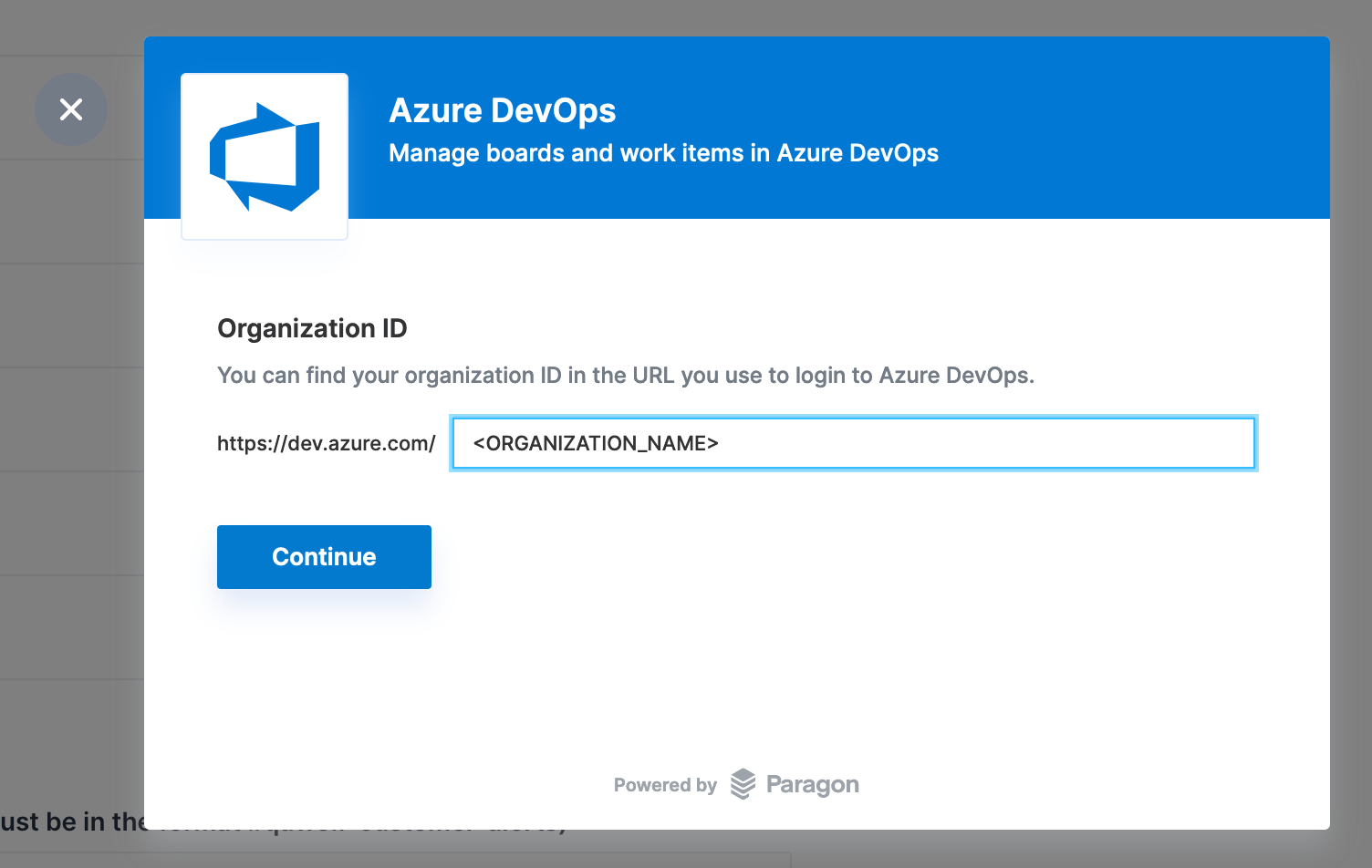
    Enter the Azure DevOps **Organization name** and click **Continue**.
    <Frame>
      <img src="https://mintcdn.com/qawolf-wiz-10935-docs-correct-deploy-success-response-contr/-iI2ykaQMX_zZAn3/images/integrate-your-issue-tracker/image-19.png?fit=max&auto=format&n=-iI2ykaQMX_zZAn3&q=85&s=c2e3b2b544debf292b0c495bc16cec22" alt="" width="1504" height="952" data-path="images/integrate-your-issue-tracker/image-19.png" />
    </Frame>
  </Step>

  <Step>
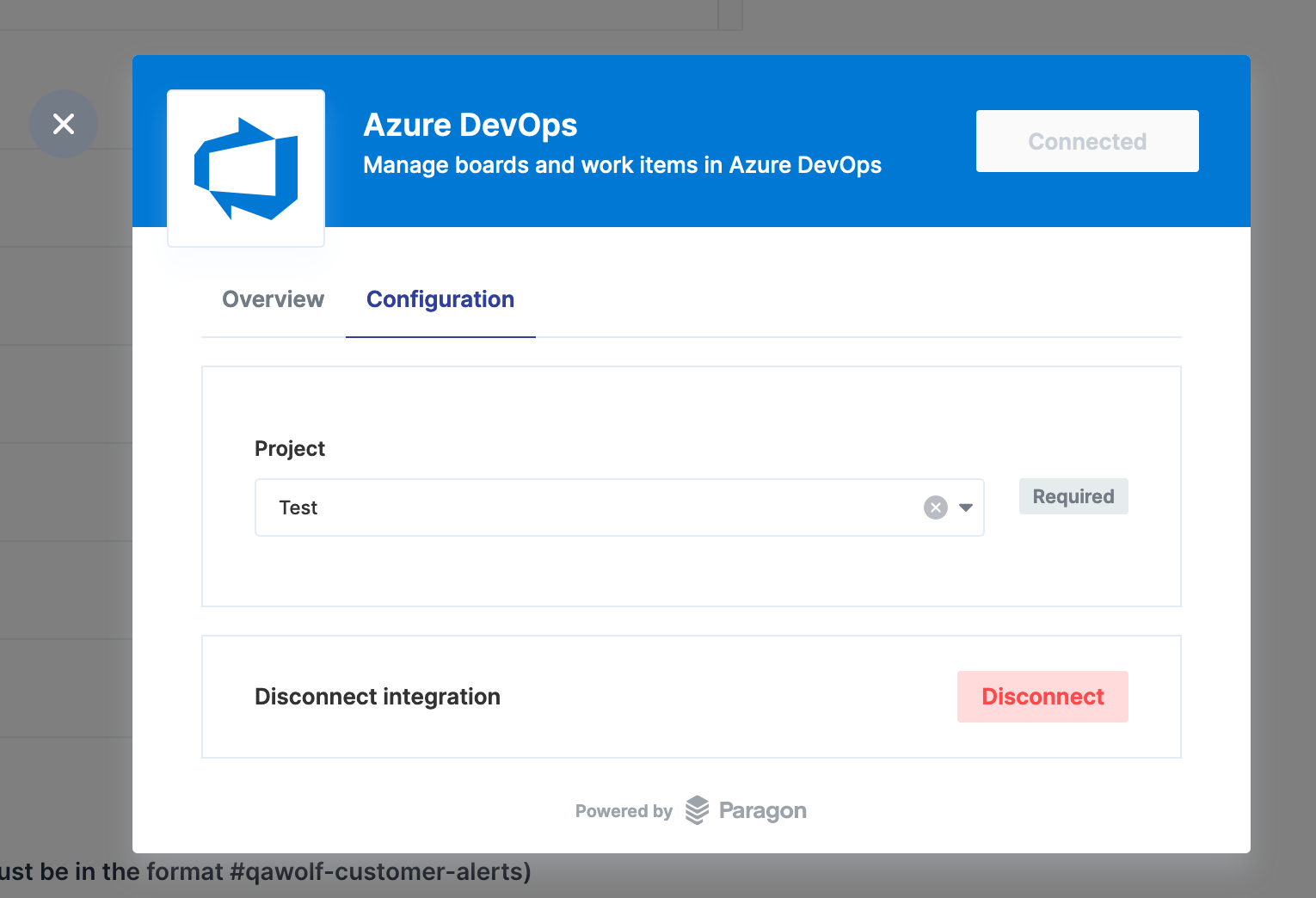
    Click **Configuration**, then select the target project from the dropdown.

    * Click **Disconnect** at any time to disable the integration.
          <Frame>
            <img src="https://mintcdn.com/qawolf-wiz-10935-docs-correct-deploy-success-response-contr/-iI2ykaQMX_zZAn3/images/integrate-your-issue-tracker/image-20.png?fit=max&auto=format&n=-iI2ykaQMX_zZAn3&q=85&s=52b4f4a3b13d48f703bd6a102a648fcf" alt="" width="1530" height="1044" data-path="images/integrate-your-issue-tracker/image-20.png" />
          </Frame>
  </Step>
</Steps>